


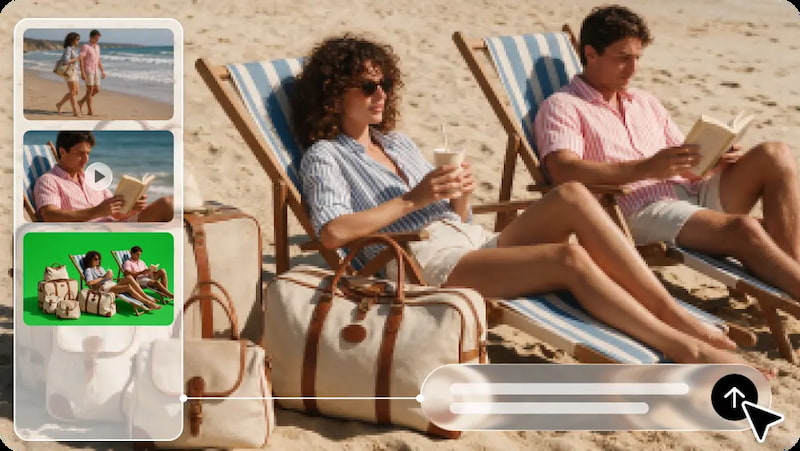
Old family photos hold significant moments, faces, relationships, and traditions that are handed down from generation to generation. These images are still, but contain stories to be thoughtfully preserved. The image-to-video technology brings some movement and a new way to relive these treasured memories. Familiar photographs can be made more immediate through subtle expressions, atmospheric details, and cinematic camera movements.
Dreamina AI is a creative platform that integrates image generation, video creation, and photo editing. The Seedance models can be used to turn reference images into dynamic video concepts with prompts and the available generation settings. The idea is not to change the family history, but to add to the original photographs the gentle animation and respectful telling of that story.
Understand What AI Animation Can Add to an Old Photograph
Prepare Family Photos Before Turning Them Into Video
The quality of the source image affects the reliability of AI’s perception of facial features, clothing, and background details. Before starting, review the photos for fading, scratches, folds, discolouration, blur, and damaged edges. The better the image, the better the visual information; in some instances, if the image is too close, the camera may have limited ability to move around. If there is a significant amount of damage, restore it or modify the contrast separately if needed, but keep a copy that has not been damaged first. Select portrait or landscape as per the format of the video and its viewing platform. While Dreamina AI can be used for creative image and video work, it shouldn’t be assumed that video generation is necessarily historical photo restoration. Creating the source photo on your own preserves key details prior to animation.
For family pictures, restrained poses and movements typically work best over dramatic poses or exaggerated expressions. Steady framing is best for formal portraits, and outdoor shots can allow for some movement in the background. For group photos, there’s even more attention that needs to be paid, as a number of faces and body positions need to be consistent.
Dreamina AI prompts can include information about the intensity of the movement, the direction of the camera, the atmosphere, and the features that should not change. For instance, you can use this prompt: “Push the camera in very slowly, add some natural movement, maintain the facial expressions, keep the clothes as is, do not change the composition, and maintain a calm nostalgic tone.” Such instructions lead to a generation that does not ensure the preservation of identity and historical correctness. Before sharing, check each result for changed expressions, bent hands, or details that were made up.
Steps to Turn Old Family Photos Into Moving Memories With Image to Video AI
Step 1: Upload a vintage photo and describe the motion
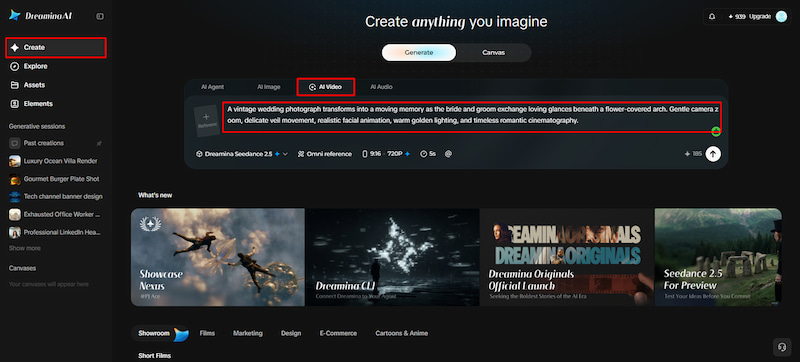
- Sign up or log in to Dreamina, then start reviving your old family photos today.
- Head to the “Create” tab in the left menu and pick the “AI video” option.
- Upload your scanned photo and type a detailed text prompt for the final memory video. Mention the video elements, theme, and concept, such as gentle smiles or softly swaying curtains.
Step 2: Choose a model and render your memory
- Next, choose a model from the options present at the bottom of the dialogue box.
- Options include Dreamina Seedance 2.5, Dreamina Seedance 2.0, Dreamina Seedance 2.0 Fast, and similar models. Dreamina Seedance 2.0 Mini and Dreamina Seedance 1.0 also work well for gentle portrait animation.
- Click “Omni reference” to guide the AI with multiple reference images of the same relative. This keeps every face consistent and gives you accurate video results across all the frames.
- Then select the custom aspect ratio and resolution from the “Aspect ratio” and “Resolution” tabs.
- Finally, click on the “Generate” tab to begin creating your moving family memory video now.
Step 3: Refine the memory and export it
- If the faces look off, you can “Edit prompt” or “Regenerate” to refine the results.
- You can also edit the generated video using the “Edit video” option to fix colours.
- Moreover, you can “Edit segment” to edit only part of the video, like a blink.
- Use “Extend video” to lengthen your clip so the memory lasts a little bit longer. Then improve the video quality using “Creative upscale” for noticeably sharper, cleaner old family portraits.
- Dreamina gives you complete freedom to edit your video the way you like with ease.
- Finally, click on the “Download” tab present at the top right of the whole interface. This saves the video file on your local device so you can easily share it.
Build a Family-Memory Film From Multiple Animated Photos
A good sequence of individual animated photographs can create a family film. Use an establishing shot of a family residence, hometown, or previous generation. Then sequence portraits, celebrations, gatherings, and location pictures in chronological order or by theme. Maintain a consistent level of animation so that each clip doesn’t outshine or overpower another. The transitions are simple, and viewers can easily identify each photo without being distracted by the visual effects. Dreamina AI can create separate clips, and a video editor can assemble the clips, add captions, and manage the timing of the soundtrack. Check dates, names, and places for accuracy before adding them, particularly if there is conflicting information in family records.
Add Music, Narration, and Voice References With Care
When used to complement, rather than replace, the photographs of a family-memory film, sound can enhance the film. The use of gentle instrumental music creates ambience, and recorded narration can be used to identify relatives, explain locations, and recall remembered stories. Provide clear explanations verbally and play background music at a lower level. Ambient sounds can add to a scene, but do not present generated sounds as a true historical document. Dreamina AI has creative features for audio, such as voice references (when available). Authentic voices should be used only for specific purposes with proper consent (especially for identifiable relatives). Multilingual narration can also be used to support family members in understanding the story across language barriers.
Protect Historical Accuracy, Privacy, and Visual Authenticity
Responsible animation is a distinction between creative interpretation and documented history. Keep original photos, keep copies of photos that are not altered, and indicate when parts of videos have been altered digitally. Look for unwanted changes in faces, clothes, objects, and backgrounds. Do not show expressions, movements or sounds as actual historical events. Before posting private pictures of living relatives or identifiable people, get the proper consent. Be careful with photos of family members who have passed away; take into account family wishes for publication. Make sure to read privacy policies and terms of use for third-party tools before posting personal content. While Dreamina AI can help with creative preservation, it’s crucial to review carefully to ensure historically respectful results.
Conclusion
The AI can transform beloved images into videos, adding a touch of movement and presentation. Dreamina AI enables prompt-based animation, video editing, and creative processes to build meaningful family tributes. Through careful preparation and restrained motion, accurate captioning and considerate sound, the original importance of each photograph is preserved. Most importantly, think of animation as an interpretation and not as a historical record. This method provides a new visual expression of the treasured memories while honouring the individuals and stories contained within.